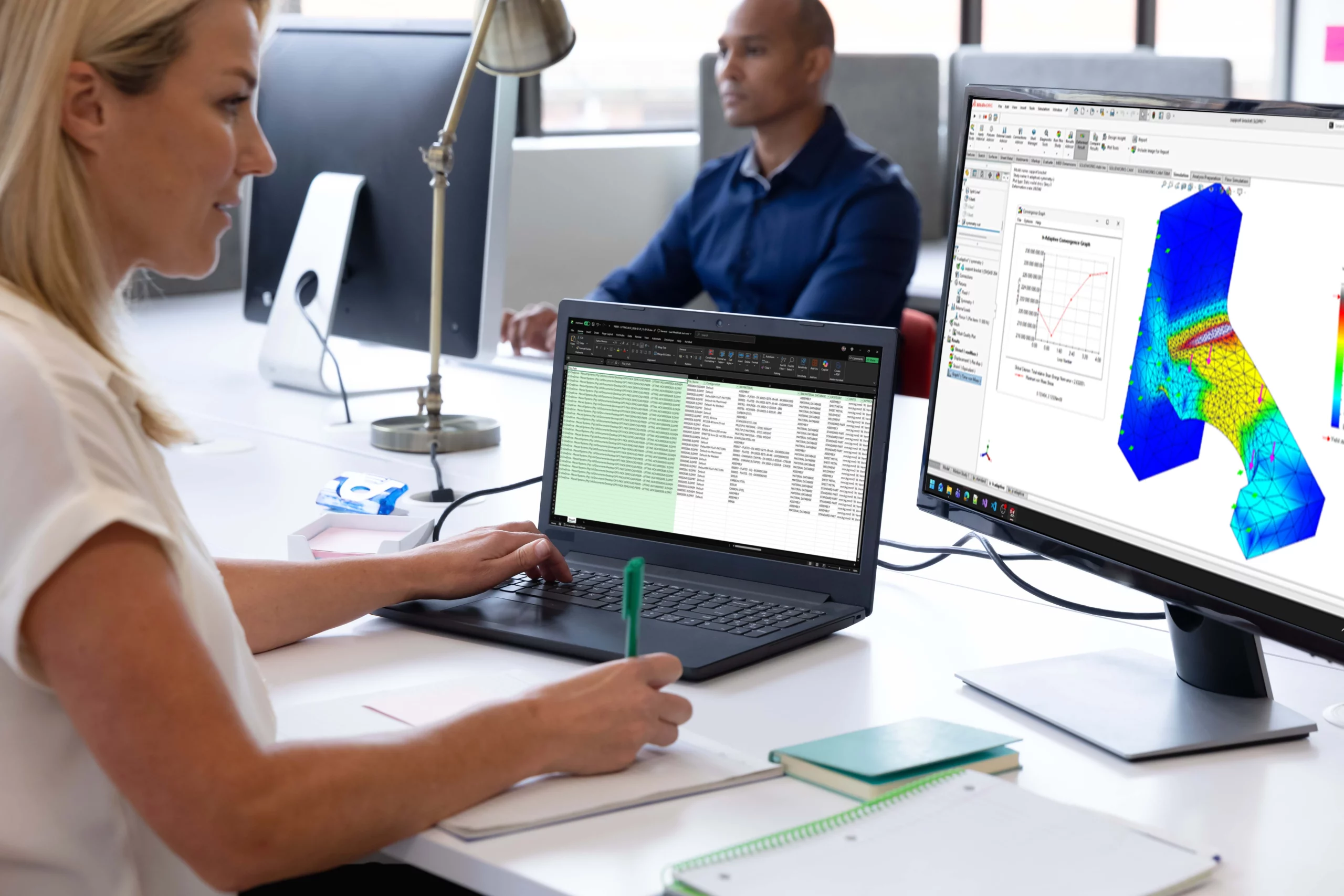
SOLIDWORKS 2026 improves both engineering analysis and product visualisation, helping teams validate designs more confidently and present them more clearly.
The release adds updates such as applied forces on beams, buckling studies, cable connector improvements, remote mass support, and better accuracy for gravity and free body forces.
SOLIDWORKS 2026 improves performance for studies with connectors and expands compatibility for broader simulation workflows.
DSPBR support, extra DSPBR controls, and closer alignment between SOLIDWORKS Design and Visualize help produce more accurate, photo-realistic visuals.
SOLIDWORKS 2026 supports Visualize directly from within SOLIDWORKS Design, along with denoiser support in CPU mode and broader rendering hardware support.
These updates help teams move more smoothly from analysis and validation to high-quality internal reviews, client presentations, and design decision-making.

MECAD Systems
Some SOLIDWORKS updates improve how quickly you model a part or assemble a product. Others improve how clearly you can test, validate, and present that design once it exists. That is where simulation and rendering become so important. A design does not only need to be created. It also needs to be understood, evaluated, and communicated clearly.
SOLIDWORKS 2026 brings meaningful improvements in both of these areas. On the simulation side, the release expands analysis capabilities with features such as applied forces on beams, buckling studies, cable connector updates, remote mass support, and better accuracy in certain load calculations. On the rendering side, SOLIDWORKS 2026 strengthens the connection between SOLIDWORKS Design and Visualize, adds DSPBR support and controls, and improves workflow quality for creating more realistic visuals.
Taken together, these updates matter because they support two essential parts of engineering work. First, they help teams validate performance more effectively. Second, they help teams present design intent with more realism and less friction.
At first, simulation and rendering may seem like very different topics. One focuses on engineering behaviour. The other focuses on visual output. In practice, however, both support decision-making.
Simulation helps engineers understand how a design behaves under load, constraint, motion, or structural conditions. Rendering helps internal teams, management, clients, and stakeholders understand what the finished design looks like and how design choices should be interpreted visually. That is why SOLIDWORKS 2026 benefits from discussing these updates together. The release improves both how teams validate design decisions and how they communicate them afterwards.
This is especially useful in modern design environments, where engineering review and design communication often happen side by side. A team may need a stronger simulation workflow to support confidence in the product, and then need a clearer rendering workflow to present that product internally or externally.
SOLIDWORKS 2026 introduces a meaningful set of Simulation updates, including Applied Forces on Beams, Buckling Studies, Cable Connector, Display of Angular Deformations, Distributed Remote Load on Shell Edges, Improved Accuracy for Gravity Loads, Improved Accuracy for Free Body Forces, SIMULIA compatibility for simulation workflows, Performance Improvements for Studies with Connectors, Pin Connector Forces, Remote Mass Support for Response Spectrum Analysis, Shell Definitions, and user interface updates.
That list matters because it shows SOLIDWORKS 2026 is not approaching simulation as a single headline feature. Instead, it is improving several areas that support more accurate, more flexible, and more usable engineering analysis.
For many users, that is exactly what makes a release valuable. The biggest day-to-day gains often come from a group of focused improvements that reduce limitations, improve clarity, or make specific study types easier to perform.
Two of the most important additions in SOLIDWORKS 2026 Simulation are Applied Forces on Beams and Buckling Studies.
These are important because they expand what users can do inside common structural analysis workflows. Beam-based modelling is often used when users want efficient structural representation without modelling every solid in full detail. Adding applied force capability in that context improves flexibility when setting up those studies. Buckling studies are equally important because stability is a critical concern in many real-world designs. Being able to assess buckling-related behaviour more directly inside the 2026 workflow gives users stronger support when checking structural performance.
From a practical point of view, these kinds of additions help simulation feel more complete. They support a wider range of analysis tasks and help users work more confidently when structural behaviour is a key design concern.
SOLIDWORKS 2026 also improves gravity load accuracy and free body force accuracy.
These may not sound as dramatic as a brand-new study type, but they are extremely important. Engineering analysis depends on trust. If users are relying on simulation to guide design choices, then the accuracy of loads and reported forces matters a great deal. Even a small improvement in accuracy can have a meaningful effect on how confidently a team interprets results.
That is one of the strengths of the SOLIDWORKS 2026 simulation story. It is not only about adding capability. It is also about improving the quality of the underlying workflow. Accuracy-focused updates may sit quietly in the release, but they often contribute more to engineering confidence than more visible features.
SOLIDWORKS 2026 also includes updates for Cable Connector, Pin Connector Forces, Distributed Remote Load on Shell Edges, and Remote Mass Support for Response Spectrum Analysis.
These enhancements matter because they support more specialised or more advanced simulation workflows. Many engineering teams do not only need a basic static study. They need to define specific connection behaviour, manage remote loading conditions, and work with a variety of representations that better match real engineering situations.
The inclusion of these updates shows that SOLIDWORKS 2026 is trying to improve the depth of the simulation environment, not only the surface-level user experience. That makes the release more valuable for users who are doing more than simple entry-level studies and want stronger control over how their models are defined and analysed.
SOLIDWORKS 2026 also improves performance for studies with connectors.
That is important because performance is often one of the factors that shapes whether simulation becomes a normal part of a workflow or something users avoid until necessary. If a study setup is valid but slow, teams may hesitate to run it as often as they should. Improvements in connector-related performance help make the workflow more practical, especially for designs where connectors play a significant role.
This fits a pattern seen across many of the SOLIDWORKS 2026 updates. The release is not only adding features. It is also trying to reduce the friction that makes existing features harder to use consistently.
Another notable update in SOLIDWORKS 2026 is stronger SIMULIA compatibility for simulation workflows.
That matters because it signals broader alignment between SOLIDWORKS Simulation workflows and the wider Dassault Systèmes simulation ecosystem. For users and businesses working across different levels of analysis sophistication, compatibility and workflow continuity can be a meaningful advantage.
Even where a team mainly works inside SOLIDWORKS, it is useful to see the platform moving in a direction that supports stronger interoperability and more connected simulation workflows. That can help future-proof processes and create a smoother path for teams whose analysis requirements grow over time.
On the rendering side, one of the clearest themes in SOLIDWORKS 2026 is better integration between SOLIDWORKS Design and SOLIDWORKS Visualize. Users can now leverage SOLIDWORKS Visualize more directly from within SOLIDWORKS Design to create photorealistic renderings, with options for size, file format, and quality.
That is a meaningful workflow improvement because rendering often becomes slower when it feels like a separate process. When users can launch high-quality visual creation more directly from the design environment, the path from CAD model to presentation asset becomes easier to manage.
This is useful for engineering teams, but it also matters for marketing, sales, and internal review workflows. A high-quality render is often not just a visual extra. It can help support design reviews, approval discussions, proposal work, and early product communication.
One of the headline rendering enhancements in SOLIDWORKS 2026 is DSPBR support in SOLIDWORKS Design.
SOLIDWORKS Design 2026 now supports DSPBR appearances, which creates a more seamless transition when opening designs in SOLIDWORKS Visualize for high-quality, photo-realistic images. This also brings SOLIDWORKS Design into closer alignment with Visualize and the 3DEXPERIENCE platform.
The Appearances PropertyManager now includes a DSPBR tab for direct material-to-material translation, and parameters from SOLIDWORKS Design map directly to Visualize. Files created in SOLIDWORKS Design 2026 also use a 1:1 correlation for DSPBR appearance mapping into Visualize, removing the need for less reliable approximations.
This is a major improvement because material behaviour has a direct effect on how convincing a render looks. When appearances translate more faithfully between environments, users get more predictable results and spend less time correcting visual differences after opening their models in Visualize.
SOLIDWORKS 2026 also adds additional DSPBR controls to help users create richer, more physically accurate materials directly in SOLIDWORKS Design.
These controls include support for Metallic, Transparency, and Emission Color textures, as well as Normal Strength, Clearcoat Normal Strength, and Normal Map Mode.
This matters because realistic rendering is not only about turning on a higher-quality mode. It depends on material definition. When users get better control over material behaviour inside SOLIDWORKS Design itself, they can create more convincing surfaces before the model even reaches the final rendering stage.
That makes the workflow more useful for teams who care about product aesthetics, material communication, or high-quality visual output for customer-facing work. It also reduces the gap between engineering-side appearance setup and final rendered output.
The rendering improvements in SOLIDWORKS 2026 are not limited to materials. SOLIDWORKS 2026 also adds support for AMD hardware in Stellar Fast Render mode and improves system information visibility so users can better understand hardware, render engine, and render mode support.
These changes matter because rendering performance and stability depend heavily on hardware compatibility. Better visibility into supported combinations helps users understand what their system can do and makes the rendering environment easier to work with.
SOLIDWORKS 2026 also adds denoiser support in CPU mode, helping reduce noise in fewer passes, and improves support for PBR materials in USDZ and glTF file formats when creating renderings from imported models. It also improves tessellation control and import speed, helping users balance geometry quality and performance more effectively.
Taken together, these updates show that SOLIDWORKS 2026 is improving both realism and workflow practicality. It is not only about prettier output. It is about making the path to that output more efficient.
It is easy to think of rendering as a marketing-only activity, but that is too narrow. Good rendering also supports internal engineering communication. It helps teams compare finishes, present design direction, communicate product intent to non-technical stakeholders, and improve decision-making during reviews.
That is why these rendering updates matter. They support stronger design presentation and decision-making with high-quality visuals, while also making the output easier to generate from the design environment itself.
Rendering is not only the final polished step at the end of a project. It can also be a working tool for understanding the product more clearly while decisions are still being made. That makes the rendering updates in SOLIDWORKS 2026 more relevant to engineering teams than some users might expect.
For simulation users, the value of SOLIDWORKS 2026 lies in stronger structural analysis options, better handling of specific conditions such as beams, buckling, connectors, and remote mass, and more confidence through targeted accuracy and performance improvements.
For users creating visuals, the value is just as practical. DSPBR support, closer SOLIDWORKS-to-Visualize mapping, additional material controls, denoiser support, tessellation improvements, and broader rendering hardware support all help reduce friction and improve output quality.
For businesses, the combined value is even stronger. A workflow that supports both better engineering validation and better design communication is easier to trust, easier to present, and easier to use across departments.
SOLIDWORKS 2026 brings meaningful improvements to both engineering analysis and visual presentation. The Simulation updates expand capability in areas such as beam forces, buckling studies, connectors, remote loads, accuracy improvements, and performance for connector-based studies. The rendering updates strengthen SOLIDWORKS Visualize integration, add DSPBR support and controls, improve tessellation and denoising workflows, and support more realistic and more predictable material handling.
That is what makes this part of the release so useful. It helps teams test designs more effectively and present them more convincingly. In practical terms, that supports better engineering decisions and clearer communication across the full design process.
If your team relies on simulation to validate design performance, or on rendering to support internal reviews and product presentation, SOLIDWORKS 2026 introduces improvements that are well worth exploring.
Share this post: