SOLIDWORKS workflows continue to evolve with stronger automation, GPU-accelerated rendering, and more connected design-to-visualisation processes.
Clean parametric modelling, strong design intent, fully defined sketches, configurations, and equations help create adaptable models that are easier to update.
Assembly Visualization helps users analyse large assemblies by mass, rebuild time, file size, and component complexity to identify performance bottlenecks.
SOLIDWORKS Visualize supports high-quality rendering with GPU acceleration, Fast Mode, drag-and-drop materials, realistic lighting, and real-time previews.
Automation supports drawing creation, mate references, design reuse, standardisation, and faster project turnaround while keeping engineering validation in place.

Applications Engineer Certified SOLIDWORKS Expert (CSWE)
In 2026, 3D modelling and visualisation workflows have undergone a major transformation. With the retirement of PhotoView 360 in 2024, professionals are now relying on advanced automation tools, GPU-accelerated rendering, and improved integration between design and visualisation tool, and tightly integrated toolchains to deliver faster, more realistic, and presentation-ready results.
This article breaks down the modern SOLIDWORKS tech stack, showing you exactly which tools to use to achieve the best outcomes in modelling, assembly analysis, and rendering.
SOLIDWORKS modelling best practices in 2026 focus on building intelligent, adaptable models using a parametric modelling workflow and strong design intent. The foundation of any successful project still lies in clean modelling, but AI has significantly enhanced how this is achieved.
In 2026, SOLIDWORKS Design (Desktop Standard, Professional, or Premium) continues to provide a robust parametric modelling environment, enhanced by improved automation tools and performance optimisations that support efficient design workflows.
When working with complex products, SOLIDWORKS assembly visualization tips become essential especially as large assembly performance remains a key challenge in 2026. Fortunately, built-in tools now offer powerful ways to analyse and optimise assemblies.
The Assembly Visualization Tool, included in SOLIDWORKS Desktop, transforms your assembly into a visual BOM (Bill of Materials), complete with sortable, colour-coded insights.
Group components logically to maintain clarity and efficiency.

With the retirement of PhotoView 360, photo-realistic rendering in SOLIDWORKS Visualize has become the industry standard. In 2026, SOLIDWORKS Visualize remains a dedicated rendering application that integrates with SOLIDWORKS through export workflows and live update capabilities, allowing for an efficient transition from design to rendering.
This shift allows for a seamless transition from modelling to rendering, supported by advancements in GPU vs CPU rendering within SOLIDWORKS.
Leverage Fast Mode for client presentations and quick turnarounds.
The use of automation and data-driven tools within the SOLIDWORKS ecosystem continues to evolve, particularly within the 3DEXPERIENCE platform. While traditional desktop SOLIDWORKS remains primarily rule-based and parametric, newer capabilities are gradually introducing more intelligent assistance into design workflows. . From modelling to documentation, automation is now embedded at every stage of the workflow.
Keep templates and standards up to date to align with evolving AI tools.
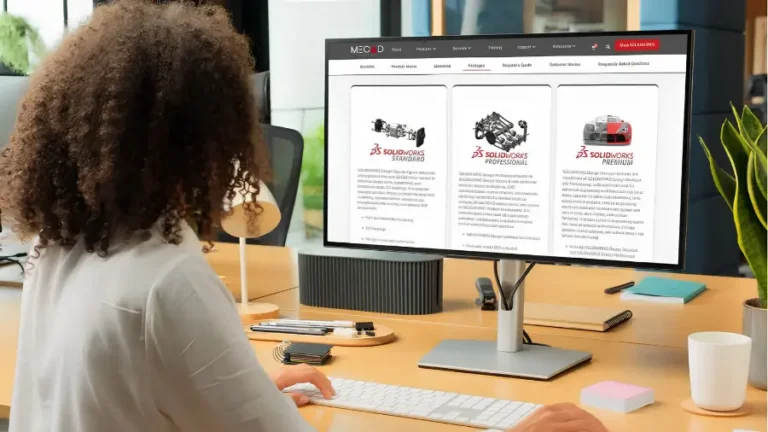
Choosing the right SOLIDWORKS product depends on how your team works. If you need robust parametric modelling, assembly tools, drawings, and design validation, explore SOLIDWORKS Design. If your focus is photo-realistic rendering, product visuals, and client-ready presentations, SOLIDWORKS Visualize is the dedicated visualisation solution.
Explore the relevant SOLIDWORKS products on the MECAD Systems website, or contact the MECAD sales team for guidance on the best setup for your modelling, assembly, and rendering workflow.
Next step: View SOLIDWORKS Design and SOLIDWORKS Visualize, or speak to MECAD Systems about the right SOLIDWORKS solution for your business.
Share this post: