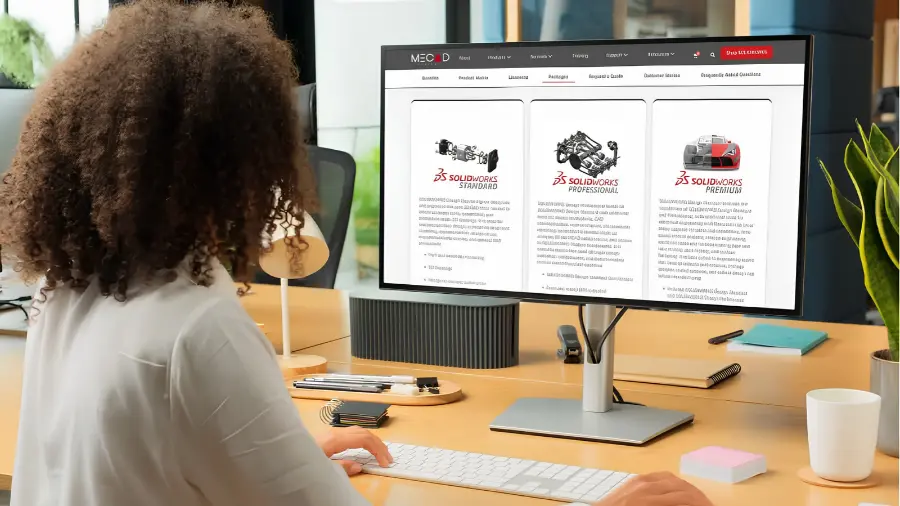
3D modelling, assemblies, drawings, manufacturing preparation (additive and NC programming), and cloud collaboration are all included at the base tier.
Toolbox parts library, photorealistic rendering, cost estimation, tolerance analysis, CAD standards checking, ECAD/MCAD collaboration, and PDM Standard give growing teams the tools to work faster and more consistently.
Linear stress analysis (FEA), motion simulation, piping and electrical routing, environmental impact assessment, and advanced surface flattening let engineers validate performance before prototyping.
You can add standalone tools like Simulation or Electrical to any tier, or run a mix of Standard, Professional, and Premium seats across your team.
Not every engineer needs the same package. Configure your licence mix based on what each person actually does day to day.

MECAD Systems
Choosing the wrong SOLIDWORKS package costs you twice. You either pay for tools your team never opens, or you hit limits that slow everyone down.
After working with SOLIDWORKS customers for more than a decade, I’ve found that the best package isn’t necessarily the highest one. In many companies, the right answer is actually a combination of Standard, Professional and Premium licences based on what different users do every day.
It comes in three main tiers: Standard, Professional, and Premium. Each one builds on the tier below it by adding more tools.
The trick is picking the tier that fits your team’s actual work. Not the one with the longest feature list.
This guide walks through what each SOLIDWORKS Design package includes, where the real differences lie, and how to choose the right one. Let’s start at the base tier.
Standard is the starting point, but it covers more ground than many people expect.
At its core, you get everything you need to design parts, build assemblies, and produce production-ready 2D drawings. That means solid and surface modelling, sheet metal design, and weldments. You can also build configurations, create exploded views, and import files from other CAD systems.
Standard also covers manufacturing preparation. According to the official SOLIDWORKS Design pricing page, it includes tools for additive manufacturing and NC programming. So you can go from design to 3D printing or CNC programming without leaving SOLIDWORKS.
On the collaboration side, Standard comes with real-time cloud tools for sharing and marking up designs with stakeholders. It also includes secure, cloud-based file and revision management, so your team can track changes without additional software.
All of this makes Standard a strong fit for small teams, solo designers, or companies that need reliable CAD with built-in manufacturing preparation. But as your team grows or your needs get more specific, you may want what Professional has to offer.
Professional includes everything in Standard. On top of that, it adds tools for productivity, visualisation, design validation, and data management. It’s built for teams that need to work faster and more consistently.
The most useful addition is Toolbox, an intelligent CAD library. It gives you access to a large collection of prebuilt, industry-standard components, fasteners, and hardware parts that configure and assemble automatically in your designs. Instead of modelling a standard M8 bolt from scratch, you simply drag it in.
Professional also adds automatic cost estimation. Integrated tools let you check your designs against manufacturing cost targets as you work. This helps you catch expensive design choices early, before they reach the shop floor.
For teams that need to present their designs visually, Professional includes photorealistic rendering. You can create high-quality images for marketing materials, client presentations, or internal reviews.
Two more tools round out the quality side. CAD standards checking lets you set company drawing standards and automatically verify that drawings and models follow them. Automated tolerance stackup analysis (TolAnalyst) checks the effects of tolerances on parts and assemblies, so you can confirm that components will fit correctly before manufacturing.
Professional also includes ECAD/MCAD collaboration tools for sharing data between electrical and mechanical design teams. And for file management, it includes SOLIDWORKS PDM Standard, which provides a secure vault for storing, managing, and controlling access to CAD files. PDM tracks revisions and keeps assembly references linked correctly.
Altogether, Professional fits mid-sized teams that need better data management, client-facing visuals, tighter cost control, and consistent design standards. But if your work also requires simulation or routed systems, that’s where Premium comes in.
Premium includes everything in Professional. What it adds is simulation, motion analysis, routing, and environmental assessment. These are the tools that let you test how a design will actually perform, all without leaving SOLIDWORKS.
The biggest addition is linear static analysis (FEA). This lets you run finite element analysis on parts and assemblies to see how they’ll respond to forces, pressures, and loads. You define your materials, apply constraints, and run the study. SOLIDWORKS then calculates stress, displacement, and factor of safety, helping you spot weak points before building a single prototype.
Premium also gives you time-based motion analysis. Standard includes basic animation, but Premium goes further with full kinematic and dynamic simulation. You can apply motors, springs, gravity, and contact conditions to an assembly. Then you measure forces, torques, and accelerations throughout the motion cycle. This is how you size motors correctly and confirm that mechanisms will work as intended.
The other major addition is routing. Premium includes tools for designing and documenting piping, tubing, and electrical cable harness systems. If your products include hydraulic lines, pneumatic tubing, or wiring harnesses, these tools automate the routing process and generate accurate manufacturing documentation.
Premium also includes environmental impact assessment tools. These let you evaluate the environmental footprint of your designs, which is increasingly important for companies that need to meet sustainability targets or regulatory requirements.
Finally, Premium includes advanced surface flattening. This is useful for products made from textiles, composites, or sheet materials. It lets you flatten complex 3D surfaces into 2D patterns that can be cut and manufactured.
The financial case for Premium is straightforward. Buying SOLIDWORKS Simulation as a standalone add-on often costs more than the price gap between Professional and Premium. If simulation is part of your regular workflow, the bundled approach usually saves money. With all three tiers covered, the next step is to see them side by side.
The table below summarises what each tier includes, based on the official SOLIDWORKS Design Product Matrix. Remember: each tier includes everything from the tier below it.
| Feature | Standard | Professional | Premium |
| Part and assembly modelling | Yes | Yes | Yes |
| 2D drawings and documentation | Yes | Yes | Yes |
| Sheet metal and weldments | Yes | Yes | Yes |
| Additive manufacturing and NC programming | Yes | Yes | Yes |
| Cloud collaboration, sharing, and markup | Yes | Yes | Yes |
| Cloud-based file and revision management | Yes | Yes | Yes |
| Intelligent CAD library (Toolbox) | No | Yes | Yes |
| Automatic cost estimation | No | Yes | Yes |
| Photorealistic rendering | No | Yes | Yes |
| CAD standards checking | No | Yes | Yes |
| Automated tolerance stackup analysis (TolAnalyst) | No | Yes | Yes |
| ECAD/MCAD collaboration | No | Yes | Yes |
| PDM Standard (file management) | No | Yes | Yes |
| Linear static analysis for parts and assemblies (FEA) | No | No | Yes |
| Time-based motion analysis | No | No | Yes |
| Piping and electrical routing | No | No | Yes |
| Environmental impact assessment | No | No | Yes |
| Advanced surface flattening | No | No | Yes |
Note: the core SOLIDWORKS CAD packages were renamed to “SOLIDWORKS Design” in 2026. For a full breakdown of what changed, see the MECAD Systems guide to 2026 product name changes.
Seeing the features laid out like this helps, but a table can only tell you so much. The real question is which tier matches the way your team works.
Start by listing what your team does every day. That list will point you to the right tier faster than any feature matrix.
If your designers model parts, build assemblies, produce drawings, and prepare files for manufacturing, Standard covers a lot of ground. It includes manufacturing preparation tools and cloud collaboration that weren’t always part of Standard in earlier versions. For small teams that don’t need simulation or local file management, it’s a capable starting point.
If your team has grown beyond a couple of people, Professional starts to make more sense. PDM Standard gives you proper version control and file management. Toolbox saves time on every assembly that uses standard hardware. Cost estimation catches expensive design choices before they reach production. And rendering tools let you present designs to clients and stakeholders without extra software.
If your engineers need to check designs for stress, motion, or performance before prototyping, Premium is the practical choice. Running FEA in-house instead of outsourcing it means faster iterations and lower development costs. For teams building products with routed systems like pipes, tubes, or wiring harnesses, Premium’s routing tools also cut out a lot of manual work.
Many companies use a mix. Most of the team runs Standard or Professional, while a few Premium seats go to the engineers who handle simulation. MECAD Systems can help you set up a licence mix that fits your team’s actual roles. But what if you only need one or two extra tools, not an entire tier upgrade?
Yes. You don’t always need to jump to a higher tier to get a specific tool. Dassault Systemes sells several SOLIDWORKS products as standalone add-on licences that work alongside any edition.
SOLIDWORKS Simulation is a good example. It comes in Standard, Professional, and Premium levels, and any of them can be added to any SOLIDWORKS CAD seat. The same goes for SOLIDWORKS Electrical, Flow Simulation, PDM Professional, and Visualize Professional. Each one is a separate licence that extends your existing package.
This approach works well when only one or two people on your team need a specific tool. Instead of upgrading everyone to Premium, you add Simulation licences just for the engineers who run FEA studies. The rest of the team stays on Professional.
One thing to watch is cost. If you end up needing several add-ons, the combined price can sometimes exceed the cost of simply upgrading to a higher tier. It’s worth comparing both paths before you commit. The MECAD Systems team can run through the numbers with you and find the setup that makes the most financial sense.
Choosing between SOLIDWORKS Standard, Professional, and Premium comes down to one thing: matching the software to what your team actually does every day.
Standard covers the essentials: modelling, drawings, manufacturing preparation, and cloud collaboration. Professional adds the productivity and validation tools that growing teams tend to need first, like Toolbox, PDM, cost estimation, and rendering. And if your work involves stress analysis, motion simulation, or routed systems, Premium pays for itself by keeping those capabilities in-house.
Whatever you choose, you’re not locked in. You can always upgrade or add specific tools later as your needs change.
Ready to find the right fit? Contact MECAD Systems for a personalised recommendation, or request a demo to see the differences in action. With almost four decades of experience and over 2,700 active clients across South Africa, we’ll help you get the right tools in place from the start.
Share this post: