Render multiple design variations from a single Visualize project, each with different appearances and scenes, in one click.
Queue multiple renders and let them process overnight instead of waiting for each one to finish before starting the next.
Offload rendering to a dedicated machine on your network so engineers can keep designing while renders run.
Harness combined GPU power across your network for ray-traced viewport previews that show appearance changes instantly.
An engineer waiting just two hours a week for renders loses over 100 productive hours annually - time Visualize Professional gives back.

Associate Applications Engineer
One of the biggest misconceptions I encounter is that SOLIDWORKS Visualize Professional is simply the version that adds animations. Most engineering teams could justify the upgrade purely through the time it saves during everyday rendering. When rendering becomes part of your weekly workflow, the ability to queue jobs, render on another machine and create multiple design variations simultaneously can save hours every week.
Creating renders with SOLIDWORKS Visualize Standard often means spending a lot of time setting up your CAD models with the best appearances, scenes and lighting. Once that is done, you press render and could be waiting up too many hours for the process to complete before you can start the next render or move on to designing your next CAD model.
Every SOLIDWORKS Professional and Premium licence includes SOLIDWORKS Visualize Standard, giving users the ability to create high quality photo-realistic renders directly from their CAD models. SOLIDWORKS Visualize Professional builds on these capabilities by introducing productivity tools that reduce repetitive work, improve rendering workflows and free engineers to continue designing while renders are being processed.
For users, where creating renders of their CAD models is a core part of their workflow, SOLIDWORKS Visualize Professional also includes the enhancements needed to work far more efficiently.
The Professional version gives you the ability to use configurations, similar in concept to SOLIDWORKS configurations, to showcase multiple design variations within a single Visualize project. Each configuration can display your CAD model with different appearances, scenes and parts toggled on or off. Once your configurations are set up, you can render all of them with a single click, with each variation saved as an individual file.

With SOLIDWORKS Visualize Standard, you are forced to wait for a Render to finish before you can start setting up the next one.
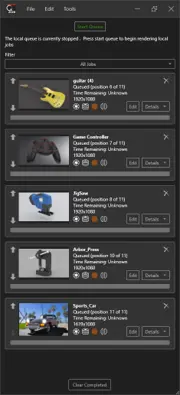
The Professional version provides a significant enhancement in this workflow by adding an integrated render Queue. This allows you to setup multiple renders and send them into a render queue similar to how a print queue works.
This gives you the flexibility to choose the best time to run your renders. You could, for example, spend standard office hours setting up renders, then let all your Visualize Projects render overnight.
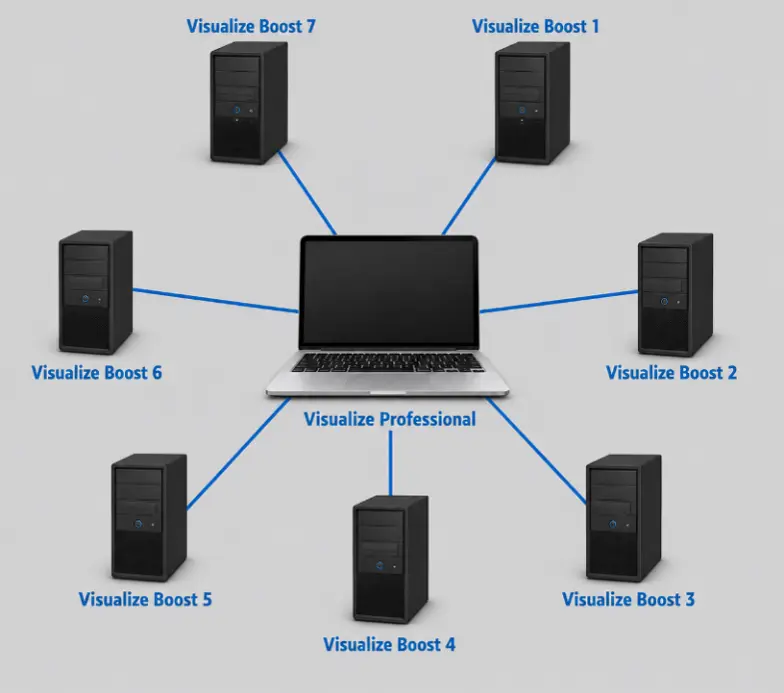
What if the rendering process could run on another machine entirely, freeing your PC to work on other tasks? Visualize Boost is an add-on product installed on a separate pc to act as a dedicated rendering machine. This means that while the lengthy rendering process is running on another machine, your current pc is unburdened by this heavy task, allowing you to set up the next render, work on designing your next CAD model or use other demanding applications. SOLIDWORKS Visualize Professional includes access to Visualize Boost for network rendering. It is also possible to have multiple Visualize Boost licenses installed across more machines on your network to further improve the render speed and content output.
SOLIDWORKS Visualize is a GPU-intensive application. If you use the different viewport render modes, particularly the fast and accurate modes, when setting up appearances for your CAD model, you will notice how slow the viewport can be to display an accurate preview of the result. PowerBoost is a new render mode available in the Professional version that harnesses the combined GPU power of the machines on your Boost network to display a ray-traced preview of your render, showing appearance changes in real time directly in your viewport. This lets you set up renders far more quickly, as the combined GPU power does the heavy lifting, allowing you to accurately see the difference between appearances and lighting setups seamlessly.
Beyond the productivity gains, the Professional version lets you create content that goes well past still, high-resolution images. You can produce animations and interactive content for presentations and webpages.
One of our customers in the signage industry regularly produced product animations for client approvals. Each animation could take several hours to render, effectively making his workstation unavailable for the rest of the afternoon. After we discovered they already owned an unused Boost licence, we configured an older CAD laptop as a dedicated render node. The result was immediate: renders ran in the background while he continued modelling on his primary workstation.
A customer in the food service industry in Gauteng needed a large number of high quality product images ahead of a new website launch. Using SOLIDWORKS Visualize Professional allowed them to manage multiple render variations more efficiently and meet a very tight marketing deadline without interrupting ongoing engineering work.
Consider an engineer who spends just two hours each week waiting for renders to complete or recreating similar render setups. Over the course of a year, that represents more than 100 engineering hours that could instead be spent designing products, supporting customers or completing projects. For organisations that regularly produce rendered images or animations, those productivity gains can quickly outweigh the investment in SOLIDWORKS Visualize Professional.
The main misconception I see is that customers know Professional can create animations and panoramic views but are unaware of Visualize Boost and the other tools included specifically to make rendering more efficient.
If rendering is something your team does once a month, SOLIDWORKS Visualize Standard is often sufficient. But if you’re producing product images every week, creating marketing content or regularly rendering animations, SOLIDWORKS Visualize Professional quickly becomes an investment in engineering productivity rather than simply a rendering upgrade.
If you’re unsure whether your organisation already has access to SOLIDWORKS Visualize Professional or SOLIDWORKS Visualize Boost, speak to the MECAD team. We can help review your workflow and ensure you’re making full use of the tools included with your licence.
Share this post: