LINE, PLINE, XREF, HATCH, TRIM and SCALE all work, and where DraftSight uses a different name (CLEAN instead of PURGE) the AutoCAD alias is still mapped.
Files open, save and round-trip without conversion - layers, blocks, external references and print styles (CTB/STB) all survive.
Load your .lsp, .mnl and .dll files through the Manage tab; only compiled .vlx files need their original source.
PowerTrim, Smart Dimension, multi-page PDF import and batch PDF-to-DXF come standard; 2026 adds SPELLCHECK without a Microsoft Office dependency.
Professional suits most 2D users, Premium adds sheet sets and 3D, Mechanical targets heavy detailing and BOM tooling - all materially cheaper than a full AutoCAD subscription.

Applications Engineer Certified SOLIDWORKS Expert (CSWE) ND ENG: Mechanical (Mechatronics)
Every year I sit with South African design teams who want to move off AutoCAD but are nervous about what they might lose. The dollar-priced renewal has climbed again on the back of a weaker rand, finance is asking why 2D drafting costs what it does, and yet nobody wants to be the person who broke the drawing office. The fear almost always comes down to the same three things: my commands, my DWG files, and the LISP routines we have built up over the years.
Here is what I tell them, and what I have watched play out on real projects: you keep all three. This is a feature-by-feature look at exactly what carries across when you switch from AutoCAD to DraftSight 2026, and where the few genuine catches are, so you can weigh the risk for yourself.
The first thing I show anyone is the command line, because that is where the worry lives. DraftSight is built to speak AutoCAD. You type the commands and aliases you already know, LINE, PLINE, XREF, HATCH, TRIM, SCALE, and DraftSight runs them. A few of its own command names are different, the native word for PURGE is CLEAN and for MTEXT it is NOTE, but the AutoCAD aliases are mapped so your muscle memory still works, and you can add your own custom aliases exactly as you did before.
The wider interface is just as familiar. The Ribbon, Quick Access Toolbar, command window and status bar are where you expect them, your Object Snaps (called Entity Snaps here) sit on the same function keys, and Dynamic Input becomes Quick Input. If you never liked the Ribbon, a Classic Workspace brings back the pull-down menus and toolbars. There is no relearning of the basics and no productivity cliff in week one.
DWG is not an import or a conversion in DraftSight, it is the native file format. That matters more than it sounds. You are not saving to a translated copy and hoping layers, blocks and external references survive the round trip. You open the same DWG, work in it, and hand it back to a client or colleague who is still on AutoCAD without a fidelity conversation. For a drawing office that exchanges files daily, this is the single biggest source of relief.
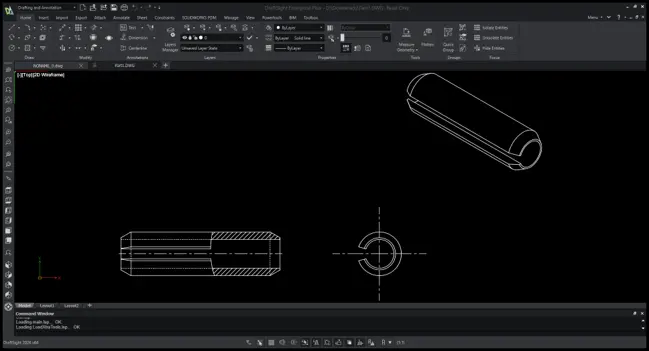
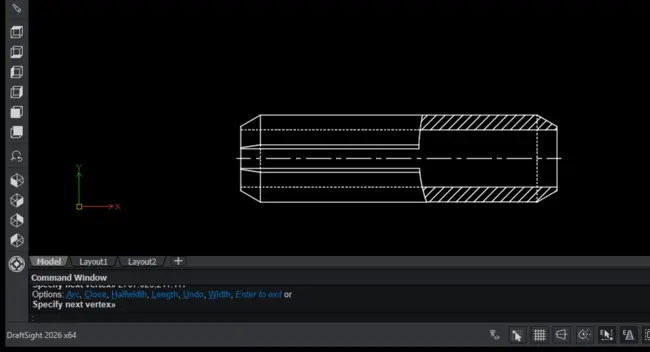
This is usually the deal-breaker question, and it is a fair one. A drawing office that has been on AutoCAD for fifteen years is not really running AutoCAD, it is running fifteen years of its own automation. DraftSight supports both AutoLISP and Visual LISP, and this is available from DraftSight Professional upwards, not only in the top edition.
You load your .lsp, .mnl and .dll files through the Load Application interface on the Manage tab, call your routines by the same command names, and set them to load automatically every time a drawing opens. DCL dialog boxes work, and the .dll route also covers .NET add-ins written in C# or VB.NET. The one caveat worth knowing up front is that compiled .vlx files will not load, so you need the .lsp source, which most firms still have. If some of your automation lives in one person’s head rather than in code, the built-in Macro Recorder lets you capture a sequence of commands and replay it, with no programming required.
One example I see often is a mechanical engineering consultancy in the Western Cape, around fifteen staff, that had built up a library of AutoLISP routines over the years: title-block and revision tools, part-numbering, standard-note macros. Their biggest fear in moving off AutoCAD was losing that automation. We loaded the .lsp files through the Load Application dialog, set them to run at start-up, and the routines worked under their original command names. The only snag was a couple of older tools that existed only as compiled .vlx files, and once we found the .lsp source those ran too. They rolled out six DraftSight Professional seats and kept every routine their team relied on.
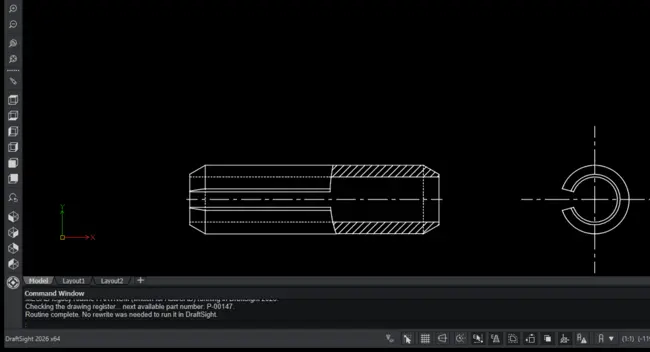
A transition is easier to justify when the new tool gives you more than a straight replacement, and DraftSight does. PowerTrim lets you trim or extend several entities by dragging the pointer across them, with everything on screen treated as a cutting edge, which is faster than picking boundaries one at a time. Smart Dimension chooses the right dimension type from the entity you select, and Auto Dimension can dimension a whole selection at once. If importing PDFs in AutoCAD has ever frustrated you, DraftSight imports multi-page PDFs and can batch-convert a folder of them to DXF.
The 2026 release adds a few more. The SPELLCHECK command now works without Microsoft Office installed, which quietly removes a licensing dependency many people never thought about, and floating document windows let you drag a drawing onto a second monitor to compare revisions. One honest point on editions: some of the newest features, including floating windows and the Powertools ribbon, sit in DraftSight Premium and above, so match the edition to the work rather than assuming everything is in the entry tier.
DraftSight 2026 is sold as Professional, Premium and Mechanical on the desktop, with Enterprise and Enterprise Plus for network licensing. In practice most 2D users who came from AutoCAD LT are well served by Professional. Teams that want sheet set management, the 3D workspace and the newer productivity features move to Premium, and drawing offices doing heavy mechanical detailing look at Mechanical for its dimensioning and BOM tooling. The old free and Standard tiers are no longer sold to new customers, so the honest comparison today is Professional versus Premium versus Mechanical.
On price, I am deliberately not quoting a number here, because it moves and because the figure that matters to a South African business is the rand price for the edition and licensing model you actually need, not a dollar list price. What I can say is that for pure 2D DWG work the running cost is materially lower than staying on a full AutoCAD subscription, which is usually what starts the conversation in the first place.
Cost is usually what starts the conversation. Take a typical case: a structural and civil engineering firm in Gauteng, about eight designers in the Sandton area, that had watched their AutoCAD renewals climb year after year for what was essentially 2D drafting. They moved the drawing office onto DraftSight, a mix of standalone Professional seats and a shared network licence so their occasional users were not each paying for a full seat. The drawings, the DWG exchange with their consultants, and their layer standards all carried across, and their annual drafting-software bill fell by more than 70 per cent against what a full AutoCAD subscription had been costing them.
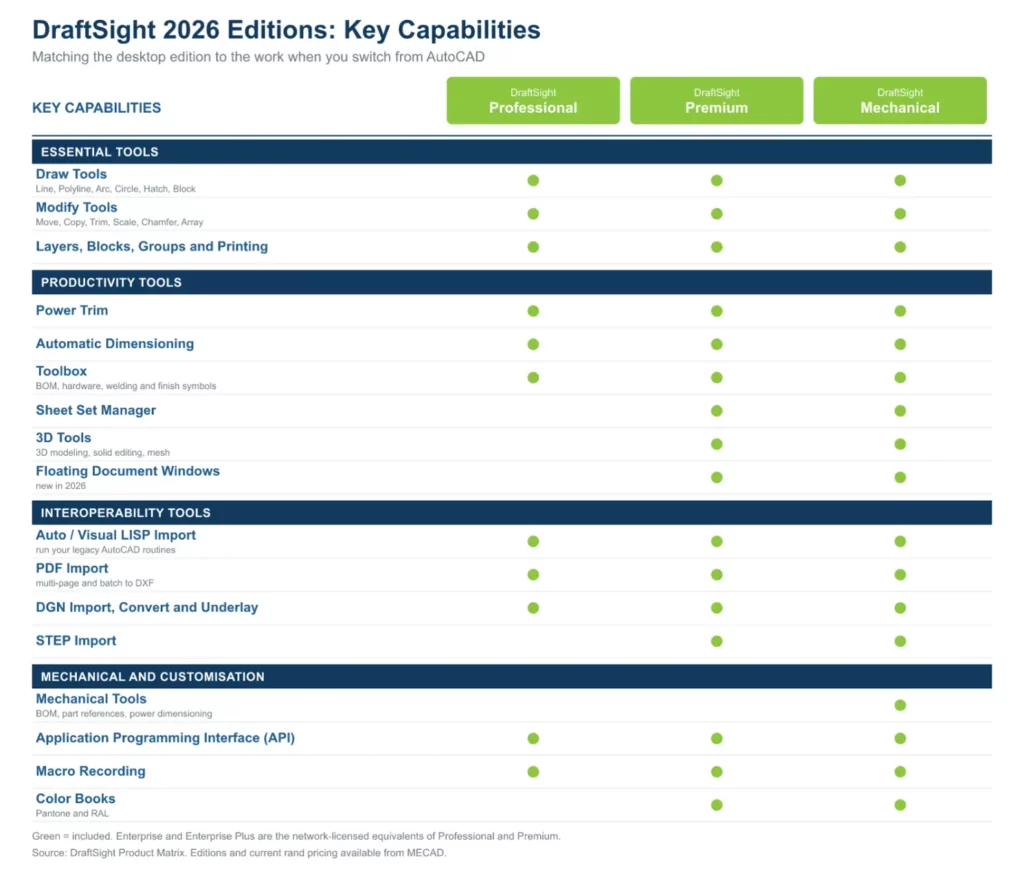
If you are weighing up the move, here is what I would hold onto:
The best way to settle any nerves is not to take my word for it. Trial DraftSight 2026 on a few of your own drawings, LISP routines included, and let the drawing office judge it on their real work. That is the whole point: you can prove the transition to yourself before you commit a cent. If you would like help scoping that, or a current rand price for the edition that fits, speak to us at MECAD, where we support DraftSight for drawing offices across South Africa.
Share this post: