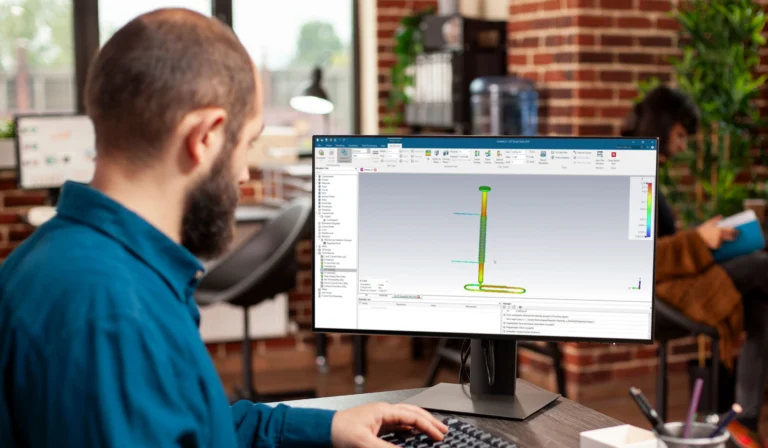
SOLIDWORKS 2026 lists 16 GB RAM and a 3.3 GHz processor as minimums, but these won't keep your team productive on anything beyond simple parts.
Assemblies over 5,000 components often benefit from 64 GB of RAM, particularly when large imported geometry, complex configurations or multiple applications are open simultaneously.
SOLIDWORKS modelling is single-threaded, so a fast Intel Core i7 or i9 outperforms a many-core chip with a lower clock speed. Extra cores only help with simulation and rendering.
Consumer gaming cards lack the certified OpenGL drivers SOLIDWORKS depends on for RealView Graphics and large-assembly stability. NVIDIA RTX Pro is the recommended line.
NVMe SSDs, antivirus exemptions for SOLIDWORKS file types, and proper display resolution all contribute to a smoother daily experience.
SOLIDWORKS 2026 requires Windows 11 Professional or Enterprise, making hardware planning more urgent for teams that haven't upgraded yet.

MECAD Systems
Every engineer knows the frustration. You’re deep into a complex assembly, adding mates and updating features, and then the rebuild takes forever. The model lags when you rotate it. Or worse, SOLIDWORKS crashes entirely and you lose the last hour of work.
These problems almost always come down to hardware. And with SOLIDWORKS 2026 dropping support for Windows 10 entirely, now is the time for engineering teams to take a hard look at their workstation specs. Understanding the SOLIDWORKS system requirements isn’t just an IT task. It’s a productivity decision that affects every designer on your team, every day.
The challenge is that Dassault Systèmes publishes minimum specs, but minimums are exactly that: the bare floor. They’ll get the software installed, but they won’t deliver the performance your team needs for real engineering work. In this guide, we’ll cut through the spec sheets and show you what actually matters for a smooth, productive SOLIDWORKS experience in 2026.
SOLIDWORKS 2026 requires Windows 11 Professional or Enterprise (64-bit), a processor running at 3.3 GHz or higher, a minimum of 16 GB of RAM, a certified OpenGL workstation graphics card, and an SSD with at least 250 GB of capacity. Windows 10 is no longer supported, and Windows Home editions are not compatible.
These are the official requirements published by Dassault Systèmes on their system requirements page. They represent the absolute minimum needed to install and launch the software. For processors, Dassault recommends Intel Core i5, i7, or equivalent AMD chips. For graphics, only cards listed on the SOLIDWORKS hardware certification page are officially supported.
A few details worth noting. Microsoft Office 2021 support ends with SOLIDWORKS 2026, so you’ll want Office 2024 going forward. Antivirus software can significantly slow down file operations if it scans SOLIDWORKS file types in real time. Dassault recommends creating antivirus exemptions for SOLIDWORKS file types and folder locations to avoid performance issues with file open, save, and import operations. And NAS or SAN storage is not officially supported; working over a network drive can cause both performance issues and file corruption.
These specs will technically run SOLIDWORKS. But if your team works with assemblies of any real complexity, runs simulation, or needs smooth navigation in 3D, you’ll need more. Let’s look at what “more” actually means.
The gap between “runs” and “runs well” is where engineering teams lose time. An underpowered workstation doesn’t just feel slow. It costs real money in lost productivity. When your engineers spend five to eight hours a day in CAD applications (as a Technology Assessment Group survey found 41% of CAD professionals do), even small slowdowns compound into significant wasted hours each week.
As CAD management expert Robert Green writes in Cadalyst, cheap workstations make software run slower, are more prone to resource-related crashes, become obsolete sooner, and frustrate the users who work on them. He also notes that underpowered machines drive away talented engineers. Industry data supports this: a World Metrics report found that automotive engineers spend 30% of their CAD time on error checking and simulation alone, time that grows further when the hardware can’t keep up. These aren’t just annoyances. They’re disruptions that break concentration, force rework, and push project timelines out.
The root of the problem is often a mismatch between the hardware and the workload. SOLIDWORKS is predominantly single-threaded for parametric modelling, which means every feature in your design tree is calculated sequentially. A processor with many cores but a low clock speed will feel sluggish during rebuilds. A consumer gaming GPU might have raw power, but it lacks the certified drivers needed for stable performance. And 16 GB of RAM, the official minimum, will force the system to swap data to the SSD once your assembly gets moderately complex.
MECAD’s detailed guide on computer requirements for SOLIDWORKS breaks this down by workload tier, which is the right way to think about it. Your hardware should match what your team actually does, not just what the installer will accept.
While 16 GB remains the official minimum, 32 GB has become the practical starting point for most professional SOLIDWORKS users. If your team runs simulation studies, handles assemblies with more than a few thousand components, or multitasks between SOLIDWORKS and other applications, 64 GB is the better choice. Heavy simulation users should consider 128 GB.
The official minimum is 16 GB, but that leaves very little headroom. As Velocity Micro’s benchmarking guide explains, assemblies exceeding 5,000 unique components need 64 GB to prevent the system from swapping to the SSD, which introduces a latency penalty of 10 to 100 times compared to reading from RAM. In practical terms, that means your model rotations stutter, rebuilds crawl, and file opens take far longer than they should.
Simulation is particularly demanding. ProX PC’s analysis of SOLIDWORKS Simulation 2026 hardware notes that if the solver runs out of RAM, it starts using the SSD as virtual memory, which can dramatically extend solve times. For non-linear FEA studies with fine meshes, 64 GB is a starting point, and complex multi-body studies may need 128 GB to solve in a reasonable timeframe.
If your team works with SOLIDWORKS Simulation regularly, or if you’ve noticed large assembly performance improvements in recent releases but still experience lag, RAM is likely the first bottleneck to address. It’s also one of the most cost-effective upgrades you can make to an existing workstation.
For SOLIDWORKS modelling and assemblies, prioritise a processor with the highest single-core clock speed you can get, ideally 4 GHz or above with strong turbo boost performance. Intel Core i7 or i9 processors (latest generation) are the most popular choice. For simulation and rendering, core count matters more, so a balance of high clock speed and 8 to 16 cores is ideal.
Current-generation AMD Ryzen 7 and Ryzen 9 processors can also deliver excellent SOLIDWORKS performance, particularly models with strong boost clock speeds. As with Intel, single-core performance remains the primary consideration for CAD modelling workloads
This recommendation comes down to how SOLIDWORKS uses the CPU. Parametric modelling, rebuilds, and mate solving are primarily single-threaded tasks. That means SOLIDWORKS works through your design tree one feature at a time, on a single core. A 24-core workstation processor running at 2.5 GHz will feel slower for everyday CAD work than a 6-core chip running at 5 GHz.
Where extra cores help is in simulation and rendering. SOLIDWORKS Simulation’s solvers (Intel Direct Sparse and FFEPlus) can spread calculations across multiple cores, so an 8 to 16-core processor will significantly reduce solve times compared to a quad-core. SOLIDWORKS Visualize also benefits from extra cores during CPU-based rendering, and its GPU rendering mode takes the load off the processor entirely.
As Petronella Technology Group highlights in their 2026 workstation guide, a standard office PC or gaming rig simply is not built for the demands of professional computer-aided design. But that doesn’t mean every engineer needs the most expensive option on the shelf. A designer working on simple parts and small assemblies will be well served by a current-generation Core i7. Engineers running complex simulations daily will see a clear return on investment from a higher-spec processor. Robert Green’s advice in Cadalyst puts it well: buy workstations that will serve a power CAD user for two to three years, then pass them along to staff with lighter workloads. The key is matching the CPU to the workload.
Yes. SOLIDWORKS relies on the OpenGL graphics API and requires certified drivers for features like RealView Graphics and stable large-assembly navigation. Consumer gaming GPUs (such as NVIDIA GeForce) lack these certified drivers and are a common source of instability, graphical glitches, and crashes in SOLIDWORKS.While many consumer gaming GPUs can run SOLIDWORKS, they are not certified by Dassault Systemes. Professional workstation GPUs remain the recommended choice because they provide certified drivers, predictable stability and full access to supported graphics features. This is one of the most common mistakes teams make when speccing a SOLIDWORKS machine. A gaming GPU might have impressive benchmark scores and a lower price tag, but it’s optimised for DirectX rendering in games, not OpenGL in professional CAD. SOLIDWORKS features like RealView (ambient occlusion, reflections, and shadows in the viewport), draft analysis, and large-assembly display modes depend on professional-grade drivers that have been tested and certified in partnership with Dassault Systèmes.
NVIDIA and Dassault Systèmes have a long-standing certification partnership that ensures professional GPUs deliver reliable, tested performance. The current professional line uses the “RTX Pro” branding (formerly Quadro), which clearly separates it from the consumer GeForce range. As a general guide from Velocity Micro’s benchmarks: the NVIDIA RTX 2000 is sufficient for assemblies up to 1,000 components, the RTX Pro 4000 covers large assemblies with 5,000+ parts, and the RTX Pro 6000 is reserved for photorealistic 4K rendering or very large layouts.
Before purchasing any GPU, check the SOLIDWORKS hardware certification page for your specific card and driver combination. Certification can vary between SOLIDWORKS versions, so a card certified for 2025 may need a different driver version for 2026.
Storage might seem straightforward, but it plays a bigger role in SOLIDWORKS performance than many teams realise. An NVMe SSD is essential, not optional. SOLIDWORKS generates large temporary scratch files during simulation, and ProX PC’s analysis recommends NVMe PCIe Gen5 drives for the active working directory to keep file open, save, and rebuild times as short as possible. If your team runs daily simulations, choose a drive with a high endurance (TBW) rating, since frequent large writes can wear out consumer SSDs faster than expected.
Keep at least 10 to 20% of your drive capacity free. SOLIDWORKS uses this space for virtual memory and cache files, and a nearly full SSD will see noticeably slower write performance. If possible, use a second SSD dedicated to active projects or a local PDM cache to spread the I/O load.
For displays, a resolution of 1920×1080 is the minimum for comfortable work. For desktop monitors at 27 inches or larger, QHD (2560×1440) offers a better balance between screen real estate and readability. Dual monitors are a practical choice for engineers who need to reference drawings, data sheets, or emails alongside their 3D model.
A few other details that often get overlooked. SOLIDWORKS does not support working directly from NAS or network drives; doing so can cause performance drops and file corruption. Use SOLIDWORKS PDM for file management across teams instead. And as mentioned earlier, configure your antivirus software to exclude SOLIDWORKS file types (.sldprt, .sldasm, .slddrw) and installation directories from real-time scanning.
If your organisation uses SOLIDWORKS PDM, local SSD performance becomes even more important. PDM relies on a local cache, and file retrieval, check-in and check-out performance are heavily influenced by storage speed. A fast NVMe SSD can noticeably improve day-to-day responsiveness for vault users.
| User Type | RAM | CPU | GPU |
| CAD Designer | 32 GB | Core i7 / Ryzen 7 | RTX Pro 2000 |
| Power User | 64 GB | Core i9 / Ryzen 9 | RTX Pro 4000 |
| Simulation Engineer | 64–128 GB | Core i9 / Ryzen 9 | RTX Pro 4000+ |
| Visualize / Rendering | 64 GB | Core i9 / Ryzen 9 | RTX Pro 5000+ |
Choosing the right hardware for SOLIDWORKS doesn’t have to be complicated, but it does require matching your specs to your team’s actual workload. Here are the key takeaways from this guide.
First, treat the official minimum requirements as a starting point, not a target. For productive daily use, 32 GB of RAM, a current-generation Intel Core i7 or i9, a certified NVIDIA RTX Pro GPU, and an NVMe SSD form a solid baseline. Second, prioritise single-core clock speed for modelling and core count for simulation; a workstation that excels at both tasks needs a processor that balances these two factors. Third, always use a certified professional GPU, never a consumer gaming card, and check the SOLIDWORKS hardware certification page before purchasing.
MECAD Systems is South Africa’s authorised SOLIDWORKS reseller, with offices in Centurion, Cape Town, and Durban. Our application engineers can help you assess your current hardware, recommend the right configuration for your team’s workflow, and support you through upgrades and software deployment. If you’re planning a hardware refresh alongside a SOLIDWORKS upgrade, we can help you get the most from your investment. You can also explore our SOLIDWORKS pricing in South Africa and SOLIDWORKS licence options to plan your full setup.
The biggest mistake organisations make is buying hardware based on minimum requirements. Minimum requirements are designed to launch the software, not to deliver a productive engineering experience. A workstation should be selected based on the complexity of the models, assemblies and simulations your team expects to handle over the next two to three years, not just the work they are doing today
Need a tailored hardware recommendation for your design team? Contact MECAD Systems for a consultation.
Share this post: