
 Trusted by millions of engineers and designers worldwide
SOLIDWORKS Manage extends SOLIDWORKS PDM Professional with tools for project management, process control, item and BOM management, dashboards, and reports. It helps teams move beyond basic file control and manage more of the product development process in one connected system.
SOLIDWORKS Manage is built for teams that need more control over the information linked to their design data. It helps close the gap between the CAD vault and the wider business processes that support engineering, operations, approvals, and reporting.
In many companies, design files are managed properly, but the surrounding information is still handled through spreadsheets, emails, shared folders, or separate systems. This can make it difficult to track what has changed, who needs to take action, and whether the latest information is being used.
With SOLIDWORKS Manage, teams can bring this work into a more structured environment. This gives engineers, managers, and operations teams a clearer view of what is happening across the product development process, without relying on disconnected admin.
Beyond file management, SOLIDWORKS Manage also covers BOM management and process management. Teams can build and compare complete Bills of Materials that include both CAD and non-CAD items, and run structured business processes – from Engineering Change Requests to procurement and approvals – all within the same connected system.
Many engineering teams already use SOLIDWORKS PDM Professional to control CAD files and revisions. The challenge often starts with the information and work happening outside the vault. Project tracking may still rely on spreadsheets. Change requests may move through emails. BOMs – including manufacturing BOMs, packing BOMs, and service BOMs – may be updated and tracked manually. As teams grow, this can make it harder to track progress, maintain visibility, and keep teams aligned.
SOLIDWORKS Manage is typically introduced when companies need better control over engineering processes, project timelines, approvals, and product information beyond CAD file management alone. For South African teams, an assessment meeting with MECAD Systems is the best place to start. We can review your current setup, identify workflow bottlenecks, and help you decide whether SOLIDWORKS Manage is the right fit.
SOLIDWORKS Manage helps teams work with better visibility, less manual tracking, and more control over product data.
SOLIDWORKS Manage adds five main capabilities on top of SOLIDWORKS PDM Professional.
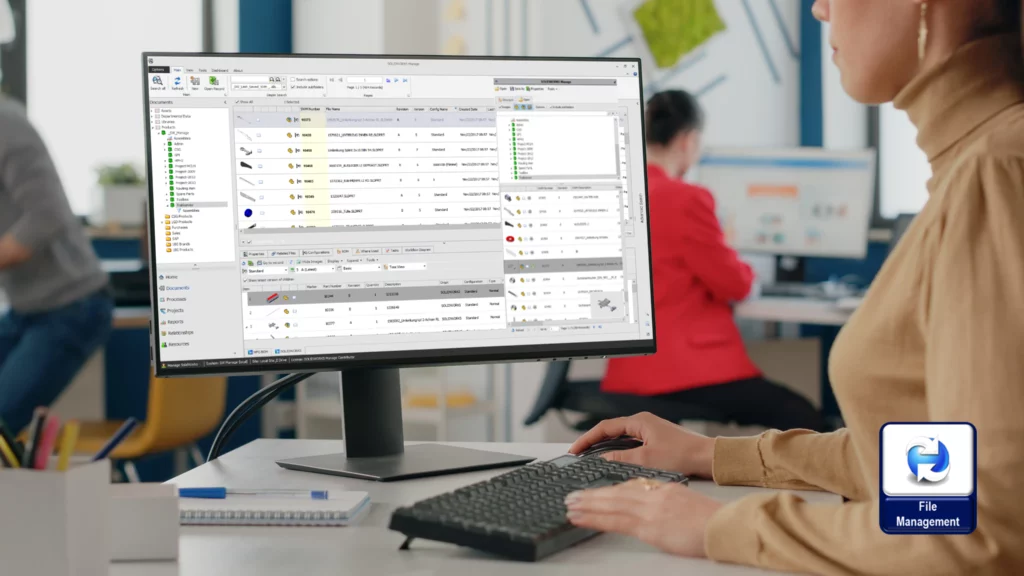
SOLIDWORKS Manage is the next step up from SOLIDWORKS PDM Professional. It is its own standalone software that works above PDM and extends what it can do – adding project, process, item, and BOM management to your existing setup. It supports file access, check-in and check-out, SOLIDWORKS integration, workflow connections, and process management.
Key points:
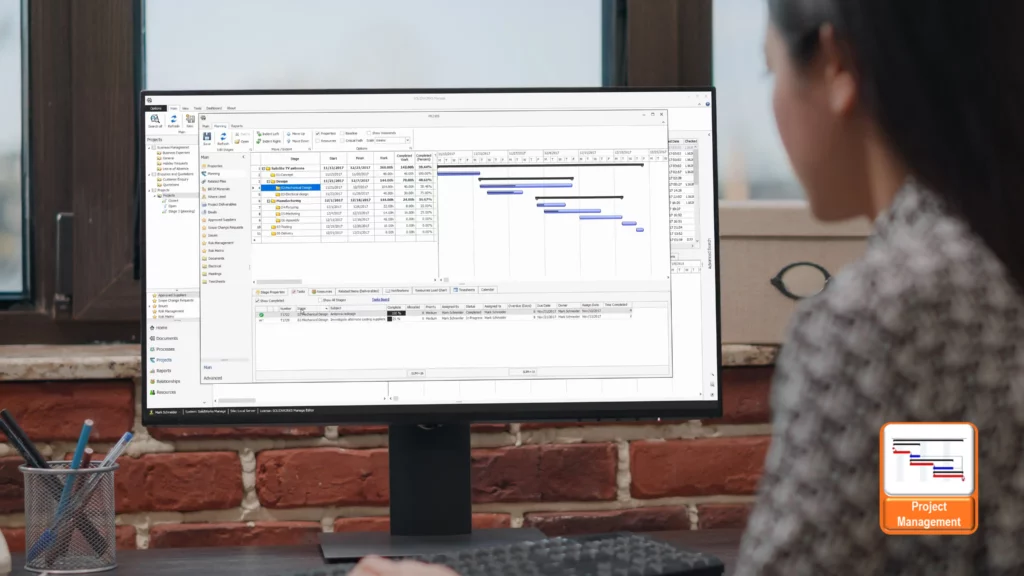
SOLIDWORKS Manage lets your team plan and track projects from start to finish, while staying directly connected to your CAD files and design data. You can manage stages, timelines, milestones, tasks, timesheets, deliverables, and resource capacity – all within the same system that holds your engineering information.
This gives project managers and engineering teams a clear view of what needs to happen next, who is responsible, and whether the project is still on track.
Key points:
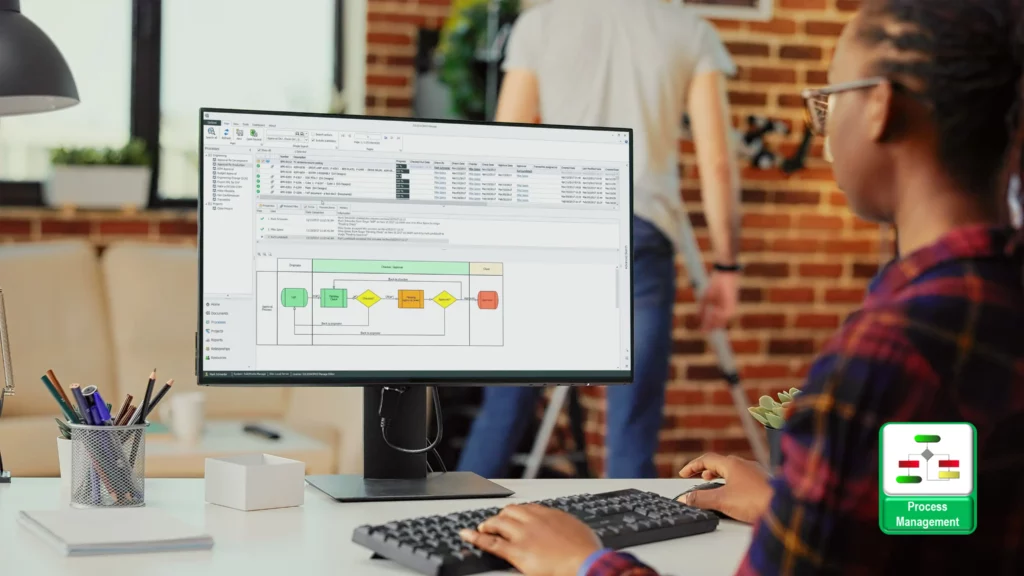
SOLIDWORKS Manage helps teams control repeatable business processes – not just engineering workflows, but any structured process your business runs. This includes Engineering Change Requests, Change Orders, Engineering Change Notices, approvals, transmittals, procurement, asset management, and more. Processes use swim lane management to map out exactly how work moves through your business, who needs to act, and what happens next.
Processes can also trigger projects and CAD workflows – and processes can start other processes – so everything in your business stays connected.
Key points:
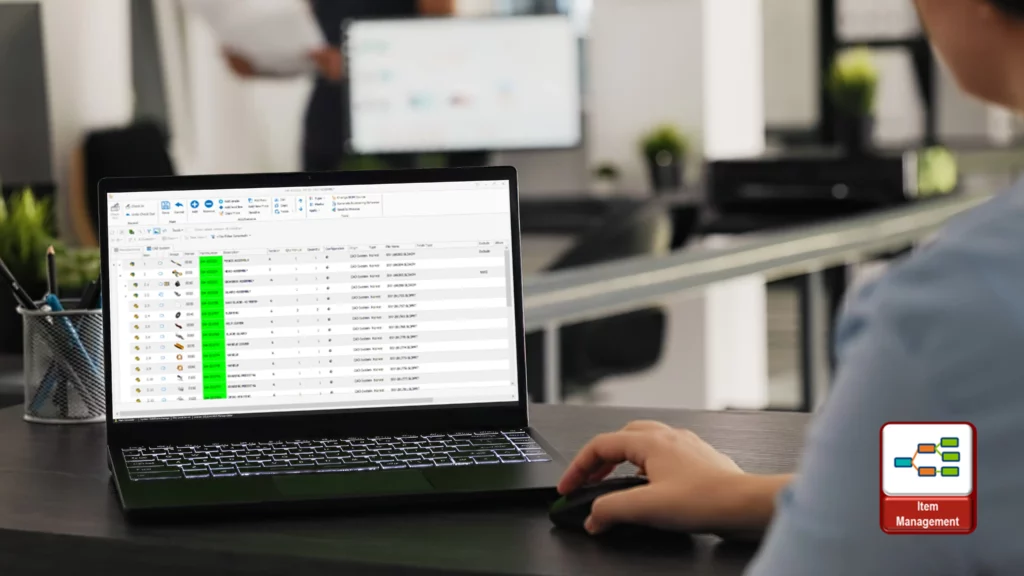
SOLIDWORKS Manage enables BOM management of both CAD and non-CAD items. A complete product definition often includes more than just CAD files – bought-out parts, consumables, documents, and other items that do not have a drawing attached. Manage lets you draw from both a CAD item pool and a non-CAD item pool to build accurate, complete BOMs.
It also supports fractional quantities, which PDM does not – making it suitable for materials that are used in measured amounts rather than whole units.
Key points:

If you can capture it in Manage, you can write a report on it. Reporting in Manage goes beyond internal data summaries – you can produce formatted, customer-facing documents directly from the information in your system, outputted as a Word document or PDF. Write a report on your project, outstanding tasks, completed milestones, or process status, and share it with your team or your customer in a format that is ready to send.
Key points:
Different users need different levels of access in SOLIDWORKS Manage. Use the matrix below to compare Manage Editor, Manage Contributor, Manage Viewer, and Manage PSLs based on what each user type can view, create, edit, update, and approve.
| Capability | Manage Editor | Manage Contributor | Manage Viewer | Manage PSLs |
|---|---|---|---|---|
| Search, view and print documents and records | ✓ | ✓ | ✓ | ✓ |
| View CAD data | ✓ | ✓ | ✓ | ✓ |
| Create and edit CAD data (With Add-in) | ✓ | — | — | ✓ |
| View non-CAD data | ✓ | ✓ | ✓ | ✓ |
| Create and edit non-CAD data | ✓ | ✓ | — | ✓ |
| View project status and timesheets | ✓ | ✓ | ✓ | ✓ |
| Update project status and timesheets | ✓ | ✓ | — | ✓ |
| View dashboards, run and export reports | ✓ | ✓ | ✓ | ✓ |
| View processes and history | ✓ | ✓ | ✓ | ✓ |
| Start and update processes on any object | ✓ | ✓ | ✓ | ✓ |
| Start processes via PDM Workflow action | ✓ | ✓ | ✓ | ✓ |
| View BOMs | ✓ | ✓ | ✓ | ✓ |
| Create and edit BOMs of CAD and Non-CAD Data | ✓ | ✓ | — | ✓ |
| View tasks | ✓ | ✓ | ✓ | ✓ |
| Assign and update tasks | ✓ | ✓ | — | ✓ |
SOLIDWORKS Manage is best suited to teams that already use SOLIDWORKS PDM Professional and want better control over the work around their design data.
SOLIDWORKS Manage pricing depends on your current setup, number of users, licensing needs, and implementation requirements. MECAD Systems can help South African customers review the available options and decide on the most suitable upgrade path.
An assessment meeting helps MECAD Systems understand your current SOLIDWORKS PDM Professional setup. This includes how your files are managed, how your team handles changes, how BOMs are created, and where your current process is causing delays.
This is the best first step before quoting, because SOLIDWORKS Manage usually needs to fit into an existing workflow.
MECAD Systems provides local support for South African SOLIDWORKS customers. For SOLIDWORKS Manage, support requirements should be discussed during the assessment meeting so your team understands the correct setup, support route, and implementation process.
There is no dedicated SOLIDWORKS Manage training listed in the supplied brief. MECAD Systems does offer SOLIDWORKS PDM training, which may help teams strengthen their data management foundation before moving to SOLIDWORKS Manage.
SOLIDWORKS PDM and SOLIDWORKS Manage support different levels of data management. Use the matrix below to compare SOLIDWORKS PDM Standard, SOLIDWORKS PDM Professional, and SOLIDWORKS Manage so you can see which option fits your team’s file, workflow, project, BOM, and reporting needs.
| Capability | SOLIDWORKS PDM Standard | SOLIDWORKS PDM Professional | SOLIDWORKS Manage |
|---|---|---|---|
| Secure access | ✓ | ✓ | ✓ |
| Revision control | ✓ | ✓ | ✓ |
| Find and reuse design data | ✓ | ✓ | ✓ |
| Audit trail | ✓ | ✓ | ✓ |
| Integrated search | ✓ | ✓ | ✓ |
| Advanced search and favourites | — | ✓ | ✓ |
| Integrated eDrawings preview | ✓ | ✓ | ✓ |
| Multi-document preview | — | ✓ | ✓ |
| Scalability | — | ✓ | ✓ |
| Automated neutral file creation | — | ✓ | ✓ |
| Custom configuration | — | ✓ | ✓ |
| Automated data import and export | — | ✓ | ✓ |
| Serial number generators | — | ✓ | ✓ |
| Distributed design teams | — | ✓ | ✓ |
| Remote access | — | ✓ | ✓ |
| Basic approval process | ✓ | ✓ | ✓ |
| Automated approval process | — | ✓ | ✓ |
| Email notifications | — | ✓ | ✓ |
| Project management | — | — | ✓ |
| Process management | — | — | ✓ |
| Item management | — | — | ✓ |
| User tasks | — | — | ✓ |
| Dashboards and reports | — | — | ✓ |
If your team is looking at SOLIDWORKS Manage, MECAD Systems can help you understand the right licensing, upgrade path, and implementation approach.
Our team can review your current SOLIDWORKS PDM Professional setup, identify where your workflow is being slowed down, and help you decide whether SOLIDWORKS Manage is the right next step.
Next steps:
SOLIDWORKS Manage is an advanced data management solution that works with SOLIDWORKS PDM Professional. It adds project management, process management, item and BOM management, dashboards, and reporting capabilities to help engineering teams manage more than just CAD files.
SOLIDWORKS PDM focuses on controlling design files, revisions, workflows, and search. SOLIDWORKS Manage extends these capabilities by adding tools for project management, change processes, item and BOM management, user tasks, dashboards, and reporting.
Yes. MECAD Systems provides SOLIDWORKS Manage solutions, licensing guidance, assessment meetings, and upgrade planning for customers across South Africa.
Not typically, no. SOLIDWORKS Manage is designed to work alongside PDM Professional – most customers keep using PDM and add Manage on top for the extra capabilities. That said, Manage does have its own archive and database, so it can technically operate independently. In practice, most teams use both together.
Yes. SOLIDWORKS Manage is specifically designed to extend SOLIDWORKS PDM Professional. MECAD Systems can assist with evaluating your current environment and recommending the correct upgrade path.
Yes. SOLIDWORKS Manage supports Engineering Change Requests, Engineering Change Orders, Engineering Change Notices, approvals, transmittals, and related workflow processes.
Yes, and it covers more than a standard BOM. Manage handles manufacturing BOMs, service BOMs, packing BOMs, and more. It also goes beyond CAD-based BOMs to include non-CAD items – so bought-out parts, consumables, documents, and any other components that make up your product can all be tracked in one place. Teams can also compare previous versions of a BOM to track exactly what changed and when.
SOLIDWORKS Manage deployment options depend on your business requirements and existing infrastructure. MECAD Systems can advise on suitable deployment and licensing options during an assessment meeting.
A SOLIDWORKS Manage assessment meeting is used to evaluate your current SOLIDWORKS PDM environment, workflow challenges, licensing requirements, and operational goals. This helps determine the most suitable implementation and upgrade approach for your business.
SOLIDWORKS Manage helps engineering and operations teams connect product data, project work, business processes, BOMs, dashboards, and reports in one advanced data management system. Speak to MECAD Systems to discuss your licensing options, upgrade path, and the best way to extend your SOLIDWORKS PDM Professional setup.
Product capability information adapted from official SOLIDWORKS Manage and Dassault Systèmes product materials.
For full global product information, visit the official SOLIDWORKS Manage product page.